
Layouts
Click the Layout toolbar icon to open the layout picker - a dialog explaining what each layout is for, not just a bare list of names.
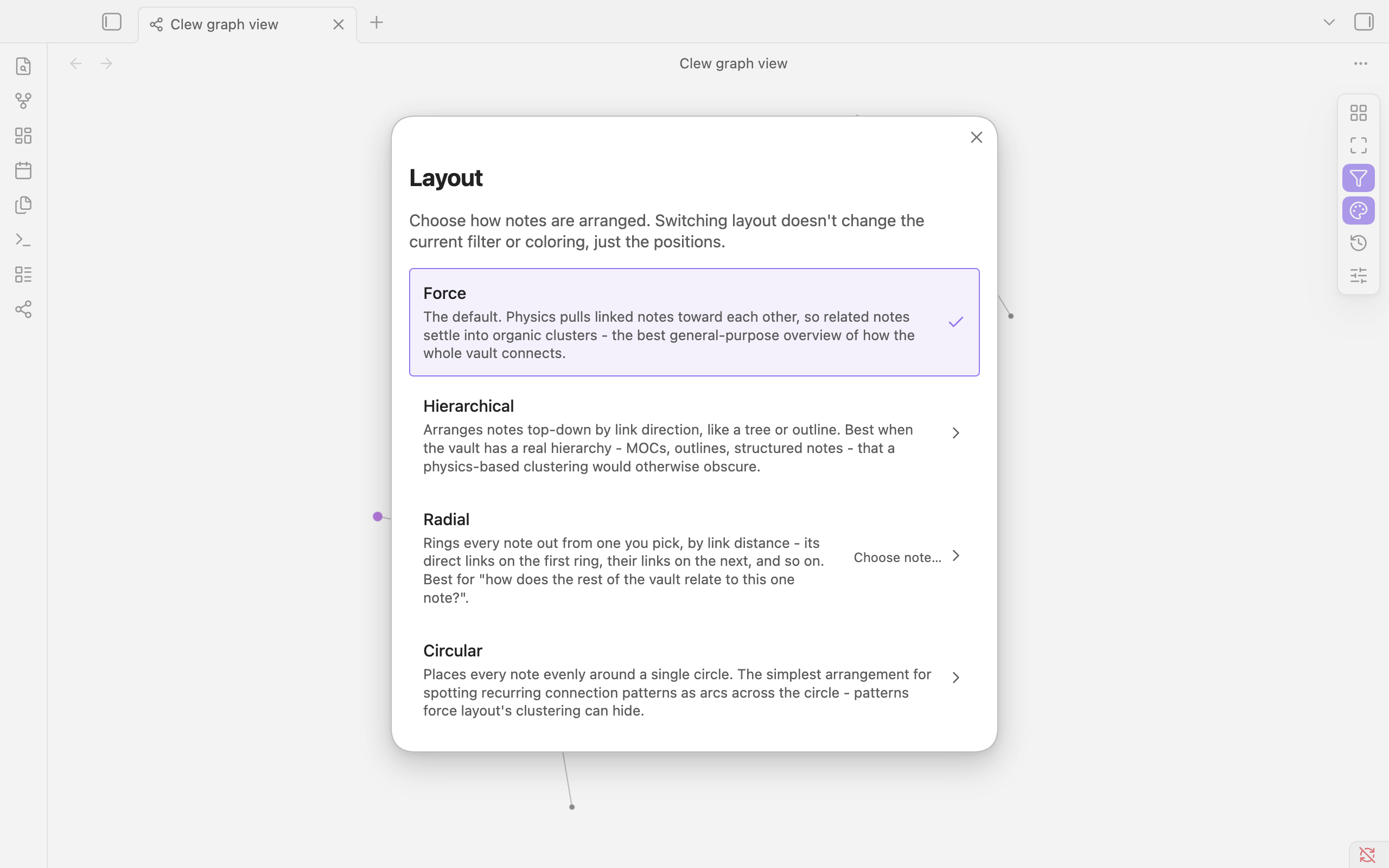
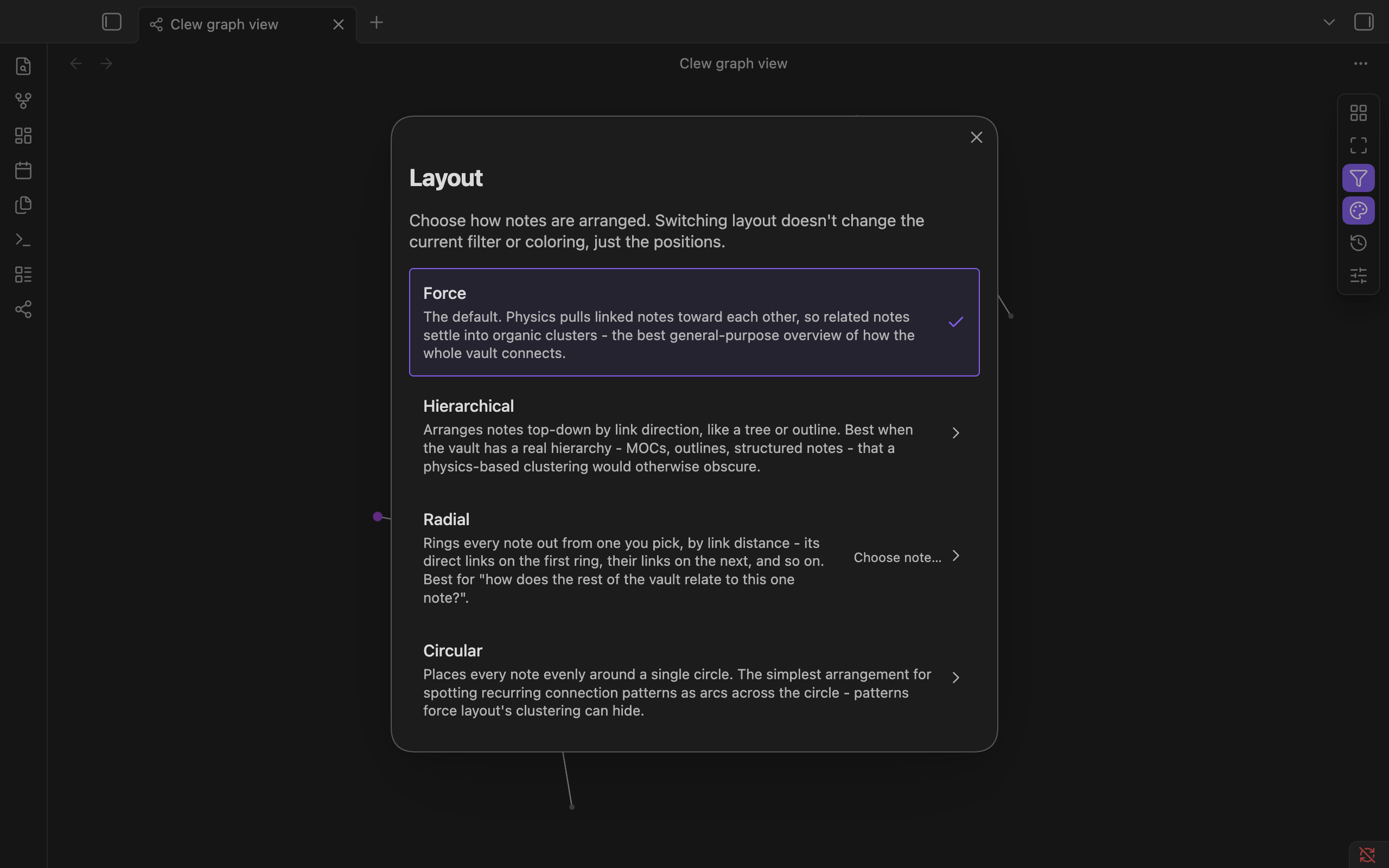
Force (the default)
Physics pulls linked notes toward each other, so related notes settle into organic clusters. The best general-purpose overview of how your whole vault connects - starts from the same deterministic seed every time, so a graph you haven't changed looks recognizably the same on reopen.
Hierarchical
Arranges notes top-down by link direction, like a tree or outline. Best when your vault has a real hierarchy - MOCs, outlines, structured notes - that force layout's clustering would otherwise obscure. Disabled above a note-count threshold, since the underlying algorithm doesn't scale to vault-sized graphs.
Radial
Rings every note out from one you pick, by link distance - its direct links on the first ring, their links on the next ring, and so on. Choosing "Radial" always opens a note picker first, since it needs to know which note to center on. Best for "how does the rest of my vault relate to this one note?" while still seeing everything. If the whole vault is too much even laid out this way, see Focus - it hides everything past a hop distance you pick, instead of just ringing it further out.
Circular
Places every note evenly around a single circle. The simplest arrangement for spotting recurring connection patterns as arcs across the circle - patterns force layout's clustering can hide.
Timeline
Spreads notes left to right by creation date - real elapsed time, not just order, so a quiet month and a writing burst look as different as they actually are. Notes created the same day stack in one column. Best for seeing how your vault has grown over time, something none of the other layouts show at a glance the way the Timeline scrubber plays through it.
Switching back to Force
Switching to Force always restarts from the same deterministic starting positions (or a pinned note's saved position, see Interacting with the graph), then lets the physics settle for a couple of seconds - the camera tracks the graph live while it does, rather than jumping to the final framing all at once.