
Focus
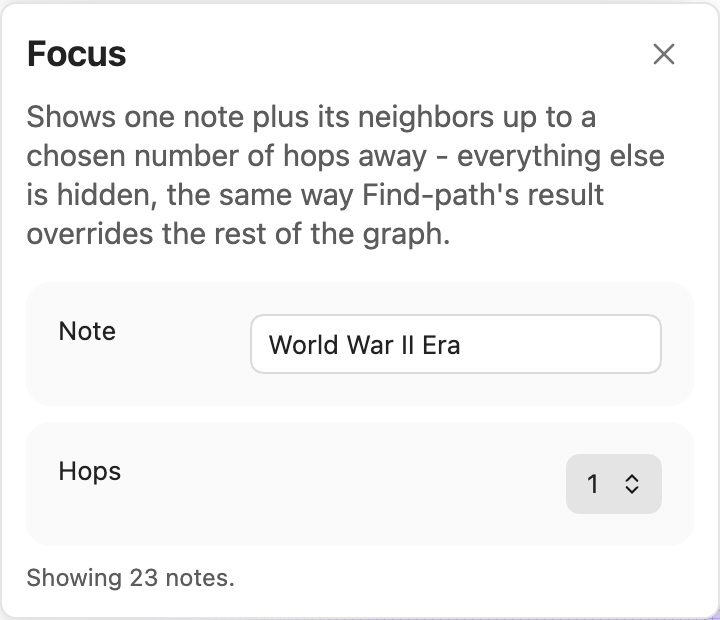
Click the Focus toolbar icon (the crosshair) to narrow the whole graph down to one note and its neighborhood - everything past a chosen number of hops away is hidden entirely, the same way Find path's result overrides the rest of the graph while it's showing.
Using it
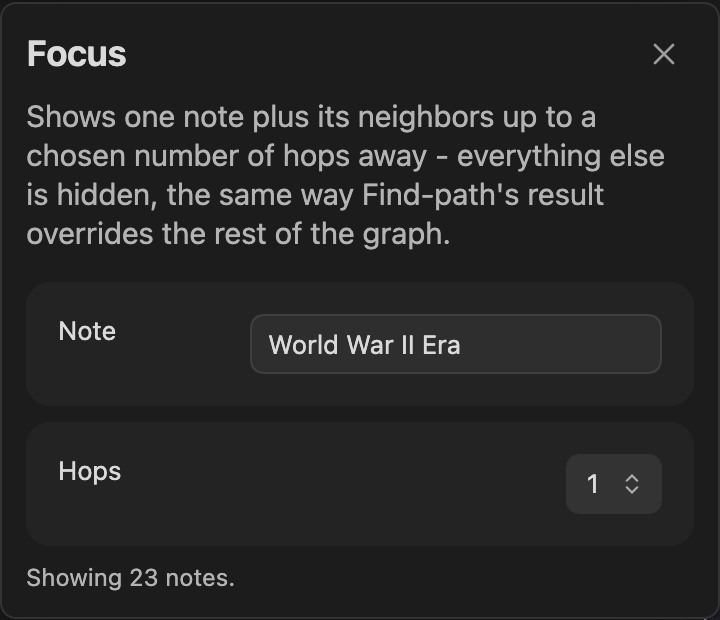
- Click the Focus icon to open the panel.
- Pick a note.
- Pick a hop depth - 1, 2, or 3.
The graph immediately shows just that note, its direct links (1 hop), their links in turn (2 hops), and so on out to the depth you picked - nothing else. Changing the hop depth while Focus is active updates the graph immediately, with no separate "Apply" step.
Focus is exclusive with Find path's result, an enabled filter's hiding, and a Diagnostics highlight - only one of these overrides the graph's normal contents at a time.
Clearing it
Click "Clear" in the Focus panel, or close the panel with the "x" - both remove the restriction and show the whole graph again.
When to use it
The Radial layout (see Layouts) answers a similar question - "how does the rest of my vault relate to this one note?" - by ringing every other note out by hop distance instead of hiding anything. Reach for Radial when you want the full picture with distance made visible, and for Focus when the vault is big enough that even that full picture is too much and you'd rather see only what's actually nearby.