
Diagnostics
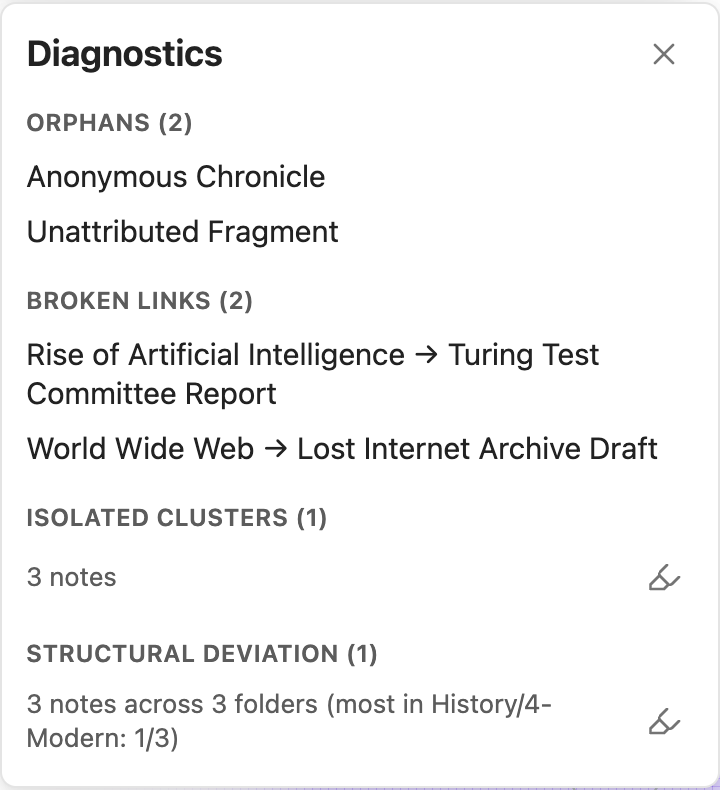
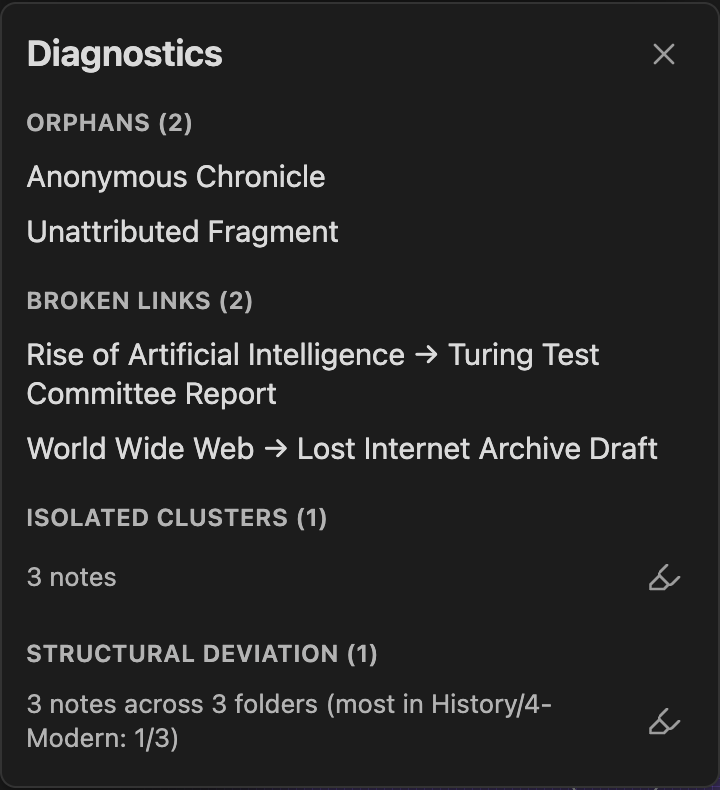
Click the Diagnostics toolbar icon (the stethoscope) to open a panel of structural problems, computed from your link graph rather than something you have to notice by browsing folder-by-folder or clicking around. Each section is a clickable list or count, one click away from being shown on the graph.
Orphans
Notes with no link to (or from) any other real note. A note whose only link is to a nonexistent note (see "Node type" in Filter) still counts as an orphan here - it has nothing real to show for that link. Click an entry to open the note.
Broken links
Every link in your vault that doesn't resolve to a note that exists, listed as source note → broken target. Click an entry to open the source note.
Isolated clusters
Groups of notes that are linked to each other but disconnected from the rest of the vault - your vault's "main body" (the single largest connected group of notes) isn't listed here, only the smaller pockets cut off from it. Each row shows how many notes are in the cluster, with a highlight button (highlighter/eraser icon) to show that cluster on the graph: matching notes recolor and get a soft glow behind them, everything else dims, so the cluster reads as one cohesive group rather than a handful of dots you have to connect by eye. Only one cluster can be highlighted at a time. This is the same distinction the "Connectivity" filter/group criterion uses - Diagnostics lists the clusters directly, Connectivity lets you build a filter or color group out of the same underlying check.
Structural deviation
One community whose notes are scattered across several different folders, even though they clearly belong together by link topology - the kind of drift that's easy to miss unless you're comparing folder layout against link structure directly. Each row shows the community and the same highlight-with-glow button as Isolated clusters. This is the same check the "Structure" filter/group criterion uses, and the same "Community" concept explained in detail on the Filter page.
Turning sections on or off
Each of the four sections - Orphans, Broken links, Isolated clusters, Structural deviation - can be turned off individually under Settings → Community plugins → Clew, if you only care about some of them. If every section is off, the panel says so and points you back to that settings page.
Both highlight buttons' glow effect can be turned off entirely (independent of the sections themselves) under Appearance → "Cluster heatmap" - the recolor/dim highlight itself stays either way.
Where to go next
- Filter and Color & size - turn any of these same checks (Connectivity, Structure, plus Bridging and Prominence) into a reusable filter or a colored group, instead of reading them off a one-time list.